Find My Leaked Information: Which Passwords to Change First
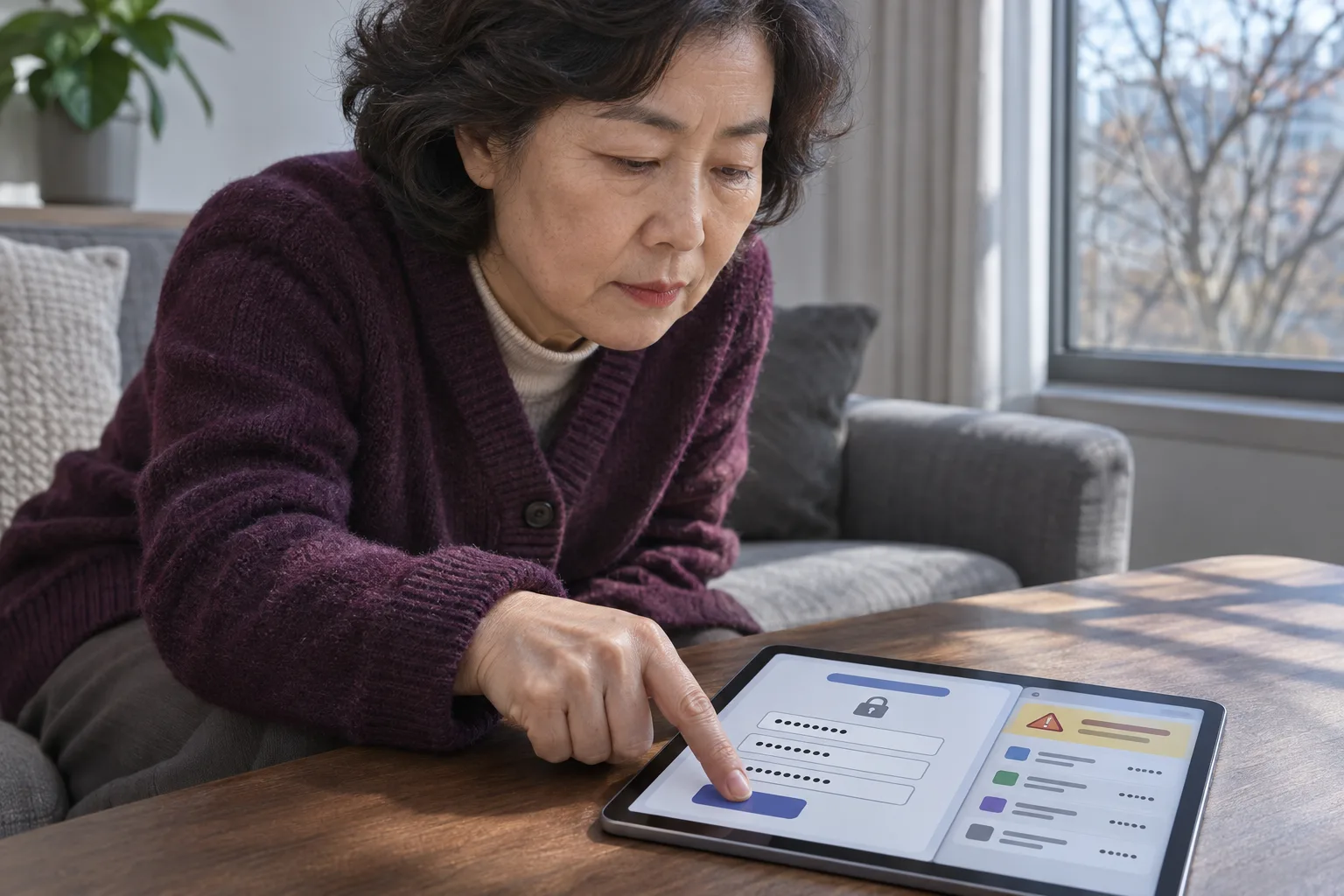
If Find My Leaked Information shows that your credentials were leaked, immediately change the password for every account that uses that combination. Use your password manager to find accounts that use the same password and change each one. Then review your signed-in devices and recovery contacts, and set up 2-step verification.
- On the official Find My Leaked Information site, verify your email address and complete reCAPTCHA before checking for leaks.
- If you find a leak, immediately change your password on every site where you use that combination.
- Use the password manager in your browser or on your phone to find accounts that share a password, then give each account a different password.
- Sign out of any devices you don't recognize, then verify your recovery contacts and turn on 2-step verification.
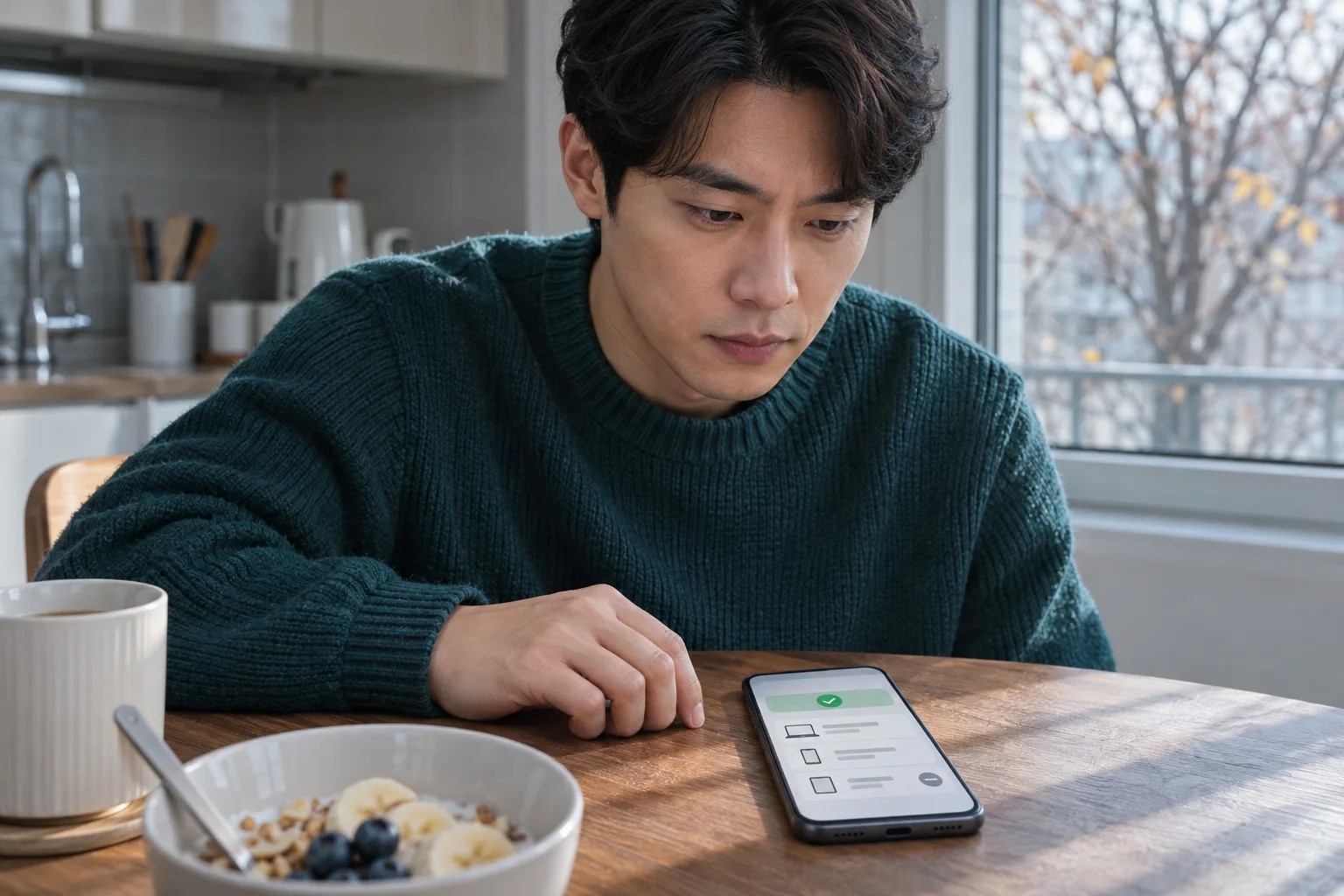
- In My Information Security Check, record the results you saw yourself under [Check] and mark the steps you've finished under [To Do].
If Find My Leaked Information finds a leak, immediately change the password for the account that uses that combination. Change the password on every other account that uses the same password, too. Then review the devices signed in to your account and your recovery contact details, and turn on two-step verification.
The scope and usage limits below are based on the official guidance checked on November 18, 2026.
What Find My Leaked Information checks and how often you can use it each day
You can check whether a username and password combination you use has circulated on the dark web or elsewhere. An update on January 29, 2026, added email addresses to the check. The Personal Information Protection Commission also introduced a way to cross-check the account information you enter.
The update raised the daily limit from 1 check to 3. According to the check page on November 18, 2026, you can use the same verification email address for at most 3 checks per day. If you reach the limit, you can use the service again from 0:00 the next day.
- Have an email address ready where you can receive a verification email. Open [Check for Leaks] on the official site.
- Agree to the collection and use of personal information.
- Enter the verification code sent to your email address and select [Verify Code].
- Complete the reCAPTCHA that appears after you verify your email address.
- Enter the account information you want to check on the official check page. The result appears on the same page.
What to do if a leak is or isn't found
The official FAQ says that if you see “Leak record found,” the first thing to do is change your password immediately. Open the account settings for the service you sign in to with that combination. Choose a new password that is unrelated to the old one and that you don't use anywhere else.
| Official check result | What it means | What to do next |
|---|---|---|
| Leak record found | A leak record matches the account information you checked. | Immediately change the password for the account that uses that combination. |
| No leak record found | The service found no matching record in the data it checked. | If you see a sign-in you don't recognize, check it separately with the service in question. |
According to the official FAQ, the check uses leaked information published on the dark web and elsewhere, as well as Google Password Checkup. A “No leak record found” result therefore doesn't tell you whether there were leaks outside the scope of the check. To see who actually accessed your account, check the sign-in history for that service.
How to find other sites where you used the same password
Check for reused passwords in the password manager you already use in your browser or on your phone. Even if the username is different, change the password on any account that still uses the exposed password. The Korea Internet & Security Agency's “Guide to Choosing and Using Passwords” also recommends using a different password for each account.
- Open your password manager's checkup menu. In Chrome on a computer, go to [Google Password Manager] and select [Checkup].
- In Google Password Checkup, look under [Reused passwords]. [Compromised passwords] and [Weak passwords] are separate categories.
- When making a list of where to change passwords, write down only the site names. Don't write down the passwords themselves or take screenshots.
- Visit each site on your list and set a different new password for each one. If you remember using the same password anywhere else, change it there too, even if you didn't save it in your password manager.
Steps for checking signed-in devices and recovery contact details
For each account whose password you changed, check which devices are currently signed in and which contact details you can use to recover the account. Your recovery email address may be used to verify your identity if you forget your password. If you used the exposed password for that email account too, change it there as well.
- Open the list of signed-in devices in your account security settings. Sign out of any devices you don't use.
- Check the recovery email address and phone number on file. If you see contact details you don't recognize, replace them with ones you can use.
- If the service supports it, turn on two-step verification in the security settings. Follow the on-screen instructions to set up a verification method you can use.
If you suspect unauthorized use of your NAVER account
The NAVER Help Center recommends signing out everywhere first if you suspect unauthorized use.
- In the sign-in list under [History Management], sign out everywhere.
- Change your NAVER account password.
- Also change the password for the email account you registered for identity verification.
- Set up two-step verification and check the setting for blocking sign-ins from abroad.
How to use Check and To Do in My Info Security Check
When you select Find My Leaked Information under [Check] in My Info Security Check, the official site opens in a new window. The official service run by the Personal Information Protection Commission and the Korea Internet & Security Agency determines whether there was a leak. My Info Security Check does not receive your email address, username, password, or official check result.
- Check your result in the official window, then return to [Check] in My Info Security Check.
- In the Find My Leaked Information section, select the result you saw. Your selection is displayed as “Checked by user · Date.”
- Under [To Do], select [Usernames and Passwords]. Check off only the steps you've actually completed on your accounts.
Your selected result and any steps you mark complete are saved only in the browser you used. To see what's left to do later, open [To Do] in the same browser. [Check for Password Exposure] in the same tab is a separate feature. It converts your password to a hash in your browser and sends only the first 5 characters of that hash.
How long the official check site keeps account information
The official service encrypts the account information you enter and compares it against its data. The consent section on the check page lists separate retention periods for the verification email address and the account information you submit for the check. (Confirmed retention periods: verification email address until 0:00 the day after you finish using the service, username and password submitted for the check until you finish using the website · Source: kidc.eprivacy.go.kr · Checked on 2026-11-21)
We only compare the data and do not store or retain plaintext data.
Find My Leaked Information, “About the Service”
| Information entered on the official site | How it's handled | Stated retention period |
|---|---|---|
| Verification email address | Part of the address is masked | Until 0:00 the day after you finish using the service |
| Username and password submitted for the check | One-way encryption | Until you finish using the official website |
FAQ
Can I also check whether an email address was exposed in a data breach?
The January 29, 2026 update added email addresses to the information you can check. The email address you first enter to verify your identity is where you receive the verification code. Once you've verified your identity, enter the account information you want to check on the lookup page.
Which email address does the limit of 3 checks per day apply to?
According to the official lookup page as of November 18, 2026, you can run up to 3 checks per day with the same email address you used to complete the first verification step. If you've used all your checks, you can use the service again starting at 00:00 the next day.
If the lookup shows a breach, which site should I change my password on?
Change your password immediately in the account settings on the site where you actually use the combination you checked. Set a different new password on each other site where you use the same password.
What should I do if there's no breach history but I see a login I don't recognize?
In the service's security settings, check the access history and the devices that are signed in. 'No breach history' reflects only the data the official service checked against. If you can't confirm the activity was yours, follow the service's procedure for handling account takeovers.
Which section should I look at in my password manager?
In Google Password Checkup, look under [Reused passwords]. You can see which of your saved accounts use the same password. In a separate list, write down only the names of the sites where you need to change your password.
What should I do if I have trouble deleting an old account because I don't know the username or password?
The Find My Leaked Information FAQ directs you to [Website Account Deletion] on the Personal Information Portal in this case. Check the Personal Information Portal to see whether it can process an account deletion for the site you want to leave.
What does 'Checked by user' mean in My Information Security Check?
It refers to the result you selected yourself after returning from the official window and the date you checked it. My Information Security Check does not receive the official lookup results. You can see the result you selected and which items are marked complete in [To Do] in the same browser.
Sources
- Find My Leaked Information, Check if your information has been leaked
- Find My Leaked Information, FAQ: Frequently asked questions
- Find My Leaked Information, About the service
- Personal Information Protection Commission, ‘My Leaked Information’: You can also check using an email address
- Korea Internet & Security Agency, Guide to choosing and using passwords
- Google Account Help, Change compromised passwords in your Google Account
- NAVER Account Help Center, What to do if someone uses your account without permission
Images