Skip to content
AI & Development Knowledge Base

Gemini Tasks: Once-Daily Scheduling and Free Access in Korea

Listen or read this article

6:41

Listen, or read the text only.

Gemini Tasks: Once-Daily Scheduling and Free Access in Korea

Kokoro 82M AI-generated voice 7 min read

0:00 6:41

Advertisement

Download audio

File name
gemini-tasks-korea-free-access-and-scheduling-en.mp3
Format
MP3 (audio/mpeg)
Duration
6:41
File size
4.59 MB
Engine
Kokoro 82M

This audio was generated by AI.

You may download and use it freely for personal use.

Advertisement

Gemini Tasks: Once-Daily Scheduling and Free Access in Korea

6 min read

Gemini Tasks: Once-Daily Scheduling and Free Access in Korea
In Korea, anyone who is at least 18 years old can use Gemini Tasks for free with a personal Google account and activity history turned on. Users without a subscription and Google AI Plus users can choose a time window for a task to run once a day. Pro and Ultra users can also set a specific time or a condition based on incoming Gmail messages.
Free access in Korea is available to users who are at least 18 years old, sign in to the Gemini app with a personal Google account, and turn on activity history.
If you set up a task to summarize a newsletter, you can check the task panel to see how far it has progressed.
Users without a subscription and Google AI Plus users can schedule each task to run once a day during a time window such as daytime or evening.
Google AI Pro and Ultra let you schedule tasks for specific times or trigger them based on incoming Gmail messages or changes in a topic, but they do not guarantee that tasks will run at the exact moment.
If login or payment information is needed, you must take over the browser and enter it directly on the webpage.
In South Korea, anyone who is at least 18 years old can use Gemini Tasks for free with a personal Google Account that has history turned on. People without a subscription and Plus users choose a time window for tasks to run once a day. Pro and Ultra users can set a specific time or an incoming email as a trigger.
The eligibility and scheduling rules are based on Google’s November 18, 2026 announcement and the guidance in Gemini Apps Help.
Who can use Tasks for free in South Korea
In South Korea, anyone who is at least 18 years old can assign tasks. You must sign in to the Gemini app with a personal Google Account. The account’s “History” setting must also be turned on. Work and school Google Accounts are not supported.
Google began rolling out free access in South Korea, the US, Japan, Canada, Australia, and India. The model used in this update is Gemini 4 Hydrogen. The beta feature for subscribers was renamed from Gemini Spark to Tasks.
How chats and tasks differ
Chats answer what you ask about now, while tasks handle work you assign in the background. You can use a chat to read a single newsletter and leave organizing your inbox to a task. To read or organize emails in Gmail, you need to connect Google Workspace to Gemini.
What you want to do with newsletters | How to do it | What to check Get the main points of a newsletter you’re reading now | Paste the text into a chat and ask for a summary | The summary in the conversation Summarize newsletters in your inbox, then archive them | Tell the task which emails to handle and what to do with them | Completed and remaining steps in the task panel Summarize new newsletters every evening | Add a recurring schedule to the summary task | The results of the task that ran during the evening window
You can assign a task without scheduling it. The task panel shows the steps that are complete and those in progress. To change which emails the task handles, update your instructions in the same task chat.
Scheduling on free and paid plans
People without a subscription and Google AI Plus users can choose a time window for each task to run once a day. If you choose daytime or evening, the task runs at roughly the same time each day within that window. Scheduling around a specific time or event requires a Google AI Pro or Ultra subscription.
Scheduling option | No subscription or Google AI Plus | Google AI Pro or Ultra Time | Once a day in a broad time window, such as daytime, evening, or nighttime | Once at a specific time, or recurring hourly, daily, weekly, monthly, or yearly Incoming Gmail messages | Scheduling based on incoming mail is not supported | Runs when an email matching a filter arrives Topic monitoring | Scheduling based on topic changes is not supported | Runs when a specified change occurs in a topic of interest Schedules that can be active at the same time | Up to 10 | Up to 50
Each schedule runs once a day. For example, with a free account, you can schedule a newsletter summary and a calendar check separately. Each runs once a day in the window you chose for it.

Scheduled time and actual run time
Even if you set a specific time with Pro or Ultra, there’s no guarantee the task will start at that exact time. There may be a delay between detecting an incoming Gmail message or a change in a topic and running the task. Google says topic monitoring is not suitable for tickets you need to book as soon as they go on sale.
Daily summary times when traveling abroad
Time-based schedules follow the time zone of the location where you first set them up. An evening summary set up in South Korea will still run on South Korean time after you arrive abroad. To receive it in the evening at your destination, ask in the task chat to switch the schedule to local time.
User confirmation and entering sensitive information
Gemini pauses the task and asks for confirmation when you need to sign in yourself or when your instructions are unclear. You can then take over the browser and enter the required information on the webpage. Do not enter passwords or card details in the task chat.
Do not enter login information, payment details, or anything you consider sensitive directly in the task chat list. Gemini Apps Help, “Manage tasks and workflows in the Gemini app”
The help center recommends avoiding schedules for tasks that use sensitive information or perform sensitive actions. If you’re offline, it can be hard to stop an unintended action in time. In regions where purchases are supported, user confirmation or prior approval is required before a purchase is finalized.
Can Gemini also call businesses and make payments in South Korea?
At the time of the announcement, tasks that call businesses on your behalf or make payments through Google Pay were available to US users. Calls are limited to US phone numbers for US businesses verified by Google. Tasks that make purchases or payments require a payment method saved in Google Wallet. Being able to schedule a newsletter summary in South Korea doesn’t mean Gemini can call local businesses or make payments on your behalf.
0:00 0:00
1 / 30

Advertisement

Download text

File name
gemini-tasks-korea-free-access-and-scheduling-en.txt
Format
TXT (text/plain)
Paragraphs
30

Downloads exactly what you see as a text file.

Please cite the source when quoting.

Advertisement

Large text

Makes the text larger and the colors clearer. Turn it on if the text feels too small.

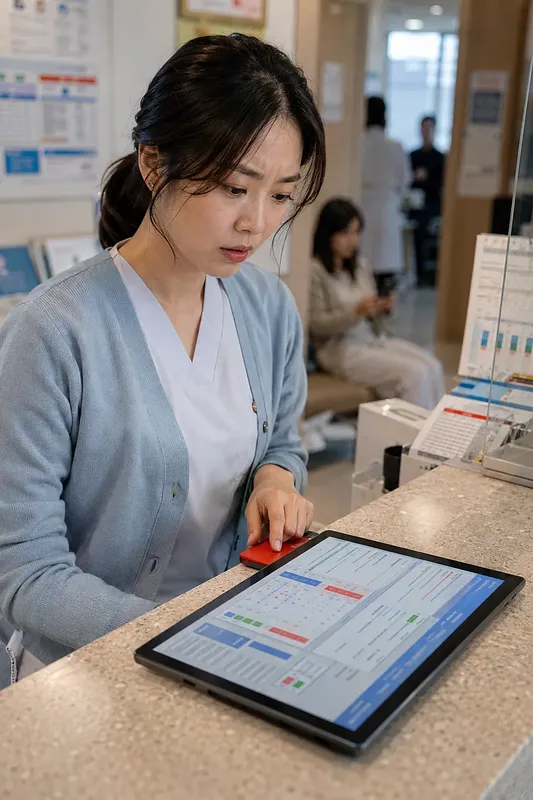
Users without a subscription and Google AI Plus users can choose a time window for a newsletter summary to run once a day.

Key points

  • Free access in Korea is available to users who are at least 18 years old, sign in to the Gemini app with a personal Google account, and turn on activity history.
  • If you set up a task to summarize a newsletter, you can check the task panel to see how far it has progressed.
  • Users without a subscription and Google AI Plus users can schedule each task to run once a day during a time window such as daytime or evening.
  • Google AI Pro and Ultra let you schedule tasks for specific times or trigger them based on incoming Gmail messages or changes in a topic, but they do not guarantee that tasks will run at the exact moment.
  • If login or payment information is needed, you must take over the browser and enter it directly on the webpage.

In South Korea, anyone who is at least 18 years old can use Gemini Tasks for free with a personal Google Account that has history turned on. People without a subscription and Plus users choose a time window for tasks to run once a day. Pro and Ultra users can set a specific time or an incoming email as a trigger.

The eligibility and scheduling rules are based on Google’s November 18, 2026 announcement and the guidance in Gemini Apps Help.

Who can use Tasks for free in South Korea

In South Korea, anyone who is at least 18 years old can assign tasks. You must sign in to the Gemini app with a personal Google Account. The account’s “History” setting must also be turned on. Work and school Google Accounts are not supported.

Google began rolling out free access in South Korea, the US, Japan, Canada, Australia, and India. The model used in this update is Gemini 4 Hydrogen. The beta feature for subscribers was renamed from Gemini Spark to Tasks.

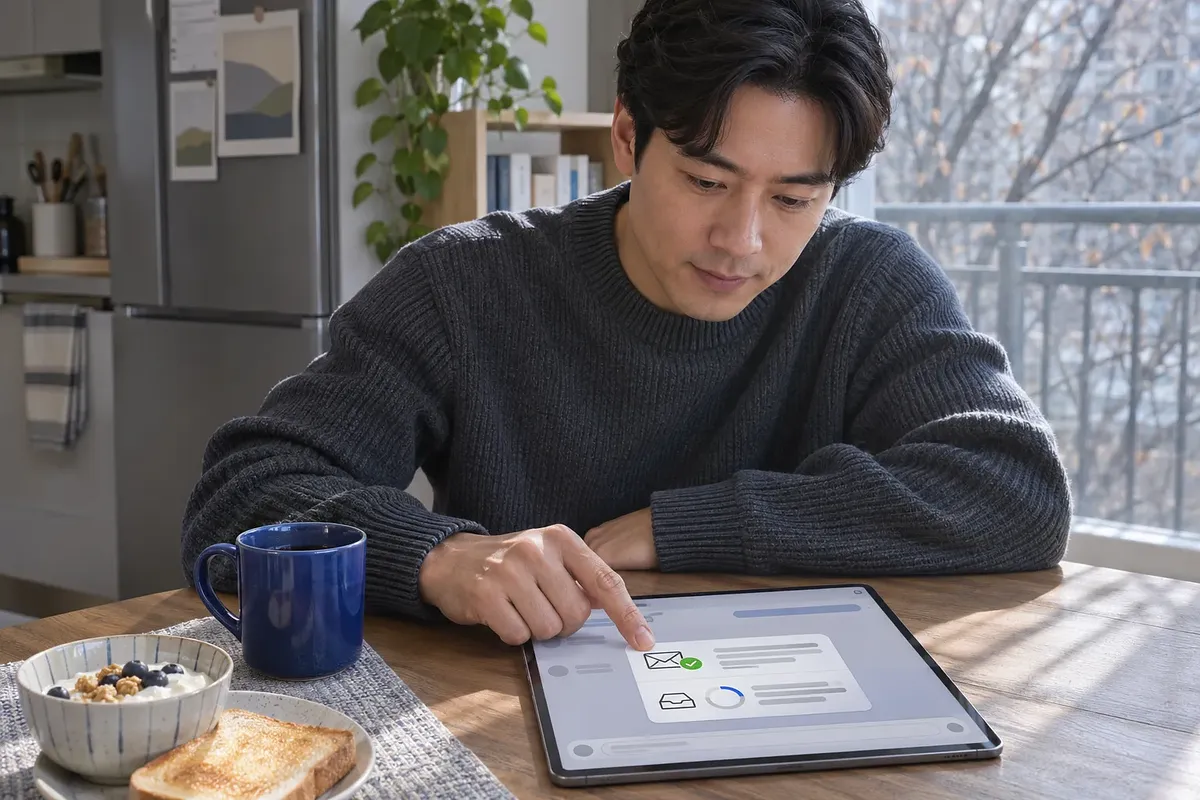
The task panel lets you check how far Gemini has got with summarizing your newsletters.

How chats and tasks differ

Chats answer what you ask about now, while tasks handle work you assign in the background. You can use a chat to read a single newsletter and leave organizing your inbox to a task. To read or organize emails in Gmail, you need to connect Google Workspace to Gemini.

What you want to do with newsletters How to do it What to check
Get the main points of a newsletter you’re reading now Paste the text into a chat and ask for a summary The summary in the conversation
Summarize newsletters in your inbox, then archive them Tell the task which emails to handle and what to do with them Completed and remaining steps in the task panel
Summarize new newsletters every evening Add a recurring schedule to the summary task The results of the task that ran during the evening window

You can assign a task without scheduling it. The task panel shows the steps that are complete and those in progress. To change which emails the task handles, update your instructions in the same task chat.

Scheduling on free and paid plans

People without a subscription and Google AI Plus users can choose a time window for each task to run once a day. If you choose daytime or evening, the task runs at roughly the same time each day within that window. Scheduling around a specific time or event requires a Google AI Pro or Ultra subscription.

Scheduling option No subscription or Google AI Plus Google AI Pro or Ultra
Time Once a day in a broad time window, such as daytime, evening, or nighttime Once at a specific time, or recurring hourly, daily, weekly, monthly, or yearly
Incoming Gmail messages Scheduling based on incoming mail is not supported Runs when an email matching a filter arrives
Topic monitoring Scheduling based on topic changes is not supported Runs when a specified change occurs in a topic of interest
Schedules that can be active at the same time Up to 10 Up to 50

Each schedule runs once a day. For example, with a free account, you can schedule a newsletter summary and a calendar check separately. Each runs once a day in the window you chose for it.


Scheduled time and actual run time

Even if you set a specific time with Pro or Ultra, there’s no guarantee the task will start at that exact time. There may be a delay between detecting an incoming Gmail message or a change in a topic and running the task. Google says topic monitoring is not suitable for tickets you need to book as soon as they go on sale.

Daily summary times when traveling abroad

Time-based schedules follow the time zone of the location where you first set them up. An evening summary set up in South Korea will still run on South Korean time after you arrive abroad. To receive it in the evening at your destination, ask in the task chat to switch the schedule to local time.

User confirmation and entering sensitive information

Gemini pauses the task and asks for confirmation when you need to sign in yourself or when your instructions are unclear. You can then take over the browser and enter the required information on the webpage. Do not enter passwords or card details in the task chat.

Do not enter login information, payment details, or anything you consider sensitive directly in the task chat list.

Gemini Apps Help, “Manage tasks and workflows in the Gemini app”

The help center recommends avoiding schedules for tasks that use sensitive information or perform sensitive actions. If you’re offline, it can be hard to stop an unintended action in time. In regions where purchases are supported, user confirmation or prior approval is required before a purchase is finalized.

Can Gemini also call businesses and make payments in South Korea?

At the time of the announcement, tasks that call businesses on your behalf or make payments through Google Pay were available to US users. Calls are limited to US phone numbers for US businesses verified by Google. Tasks that make purchases or payments require a payment method saved in Google Wallet. Being able to schedule a newsletter summary in South Korea doesn’t mean Gemini can call local businesses or make payments on your behalf.

Open the link

Opens in a new window.

Advertisement

Sign-in required

Sign in with your Google or Apple account to like, comment, and save highlights.

FAQ

Do you need a paid subscription to use Tasks in South Korea?

You can use Tasks without a subscription. You must be at least 18 years old and sign in to the Gemini app with a personal Google account that has history turned on. South Korea was included in the phased rollout of free access announced on November 18, 2026.

Can a college student who is more than 18 years old use Tasks with a school account?

Google accounts issued by schools do not support Tasks. Students who meet the age requirement can use Tasks with a personal Google account that has history turned on.

If a free schedule runs once a day, does that mean you can create only one schedule?

Once a day is how often a single scheduled task runs. Users without a subscription and Google AI Plus users can keep up to 10 schedules active.

How is reviewing newsletters together every evening different from summarizing each one as it arrives?

Reviewing newsletters together every evening uses a time-based schedule, so it’s available with free accounts and Google AI Plus. To summarize emails from specified senders as they arrive, you need Google AI Pro or Ultra, which support triggers for incoming Gmail messages.

If you schedule a summary for 7 a.m. every day, will it be ready at that time?

7 a.m. is the scheduled start time. The task may start later depending on factors such as how busy the service is. There’s also no guarantee that the result will be ready by that time.

If a task stops partway through, where can you find out why?

In the task panel of the Tasks chat, you can see the current step and any requests for your confirmation. If you need to sign in yourself, you’ll have to take over the browser and enter your login details on the site.

Can you schedule a task on your phone?

In a Tasks chat in the Gemini mobile app, you can create a schedule by describing what to do and when to run it. The Gemini web app lets you open a blank form and set up a time-based schedule yourself.

Why has a scheduled task never run?

If you’ve reached your Gemini usage limit or the limit on concurrent tasks at the scheduled time, the task may not run. If you turn off Tasks mode, all existing schedules are paused.

Sources

Data formats

This content is available in several machine-friendly formats.

Data-only languages (machine translated, files only)

Indonesian JSON MD Portuguese JSON MD Chinese (Traditional) JSON MD Deutsch JSON MD

Verification

This article was drafted with AI and then reviewed and edited by a person.

Reviewed by 신익희 · 편집장 · 2026-11-26

Figures in this article were checked against the source material during generation. · 2026-11-26

This translation has been cross-checked by AI. · 2026-11-26

Reuse & AI usage

Search indexing and AI citation with attribution are welcome. See the license policy for details.

Site license policy (commercial republishing requires permission) · License

Loading…

Loading…

Loading…

From Injoys

Request the content you want and take 70% of what it earns

Just leave the subject. We handle production, review, translation and distribution.

See how revenue sharing works

Comments