Injoys
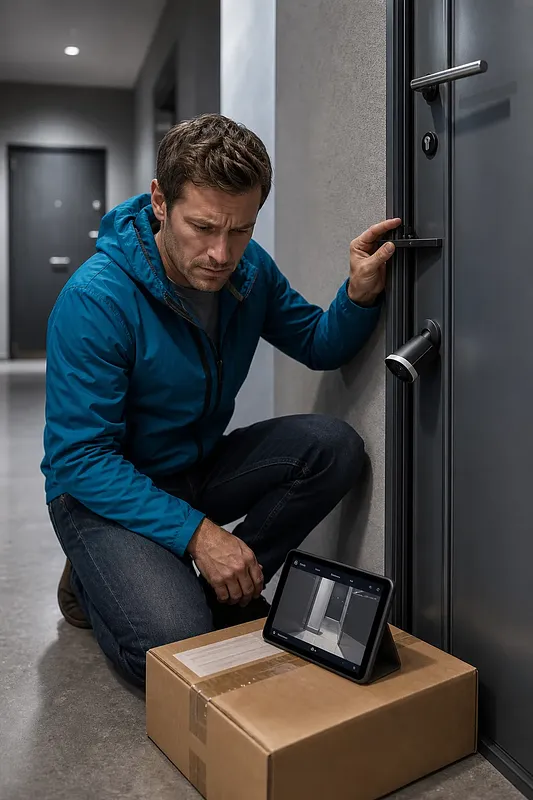
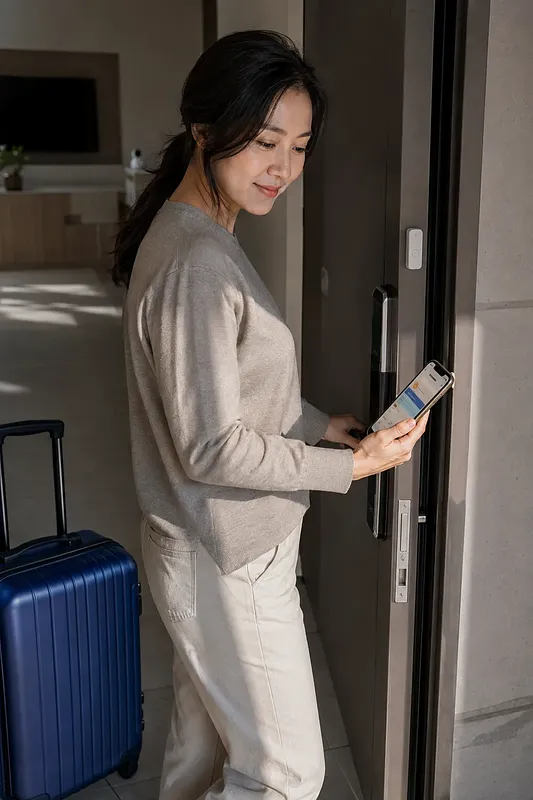
Internet-connected home cameras are useful for checking on children or pets, but footage can be exposed through account theft, outdated firmware, or incorrect sharing settings. The steps below are not product-specific menu instructions, but common security items that should be checked on most home cameras.
Anyone who uses an internet-connected home camera should perform these checks. There is no separate deadline, but it is advisable to check immediately after installation and again after a security incident notice. Before starting, prepare the manufacturer’s official app, home camera account information, recovery email address or phone number, and router administrator information if needed. Settings and firmware should be downloaded only through the manufacturer’s official app or official support page, not through seller links or unofficial files.
10-Minute Home Camera Security Setup
Menu names vary by product, but these settings can usually be found under Account, Security, Device Settings, Privacy, Storage, or Firmware.
1. Change Default and Reused Passwords
- Open the manufacturer’s official app or the camera’s local administration interface.
- Change the cloud account password to a long password that is not used for any other service.
- If there are separate passwords for
Device,Administrator,RTSP,ONVIF, orNVR Connection, check all of them and change the default values. - Do not share one account; use the invitation feature to create access for each family member.
If you reuse the same email address and password across multiple IoT devices, login information leaked from another service may also be tried on your home camera. Attackers can log in with reused credentials without exploiting a vulnerability in the camera itself.
2. Check Two-Factor Authentication and Account Recovery Methods
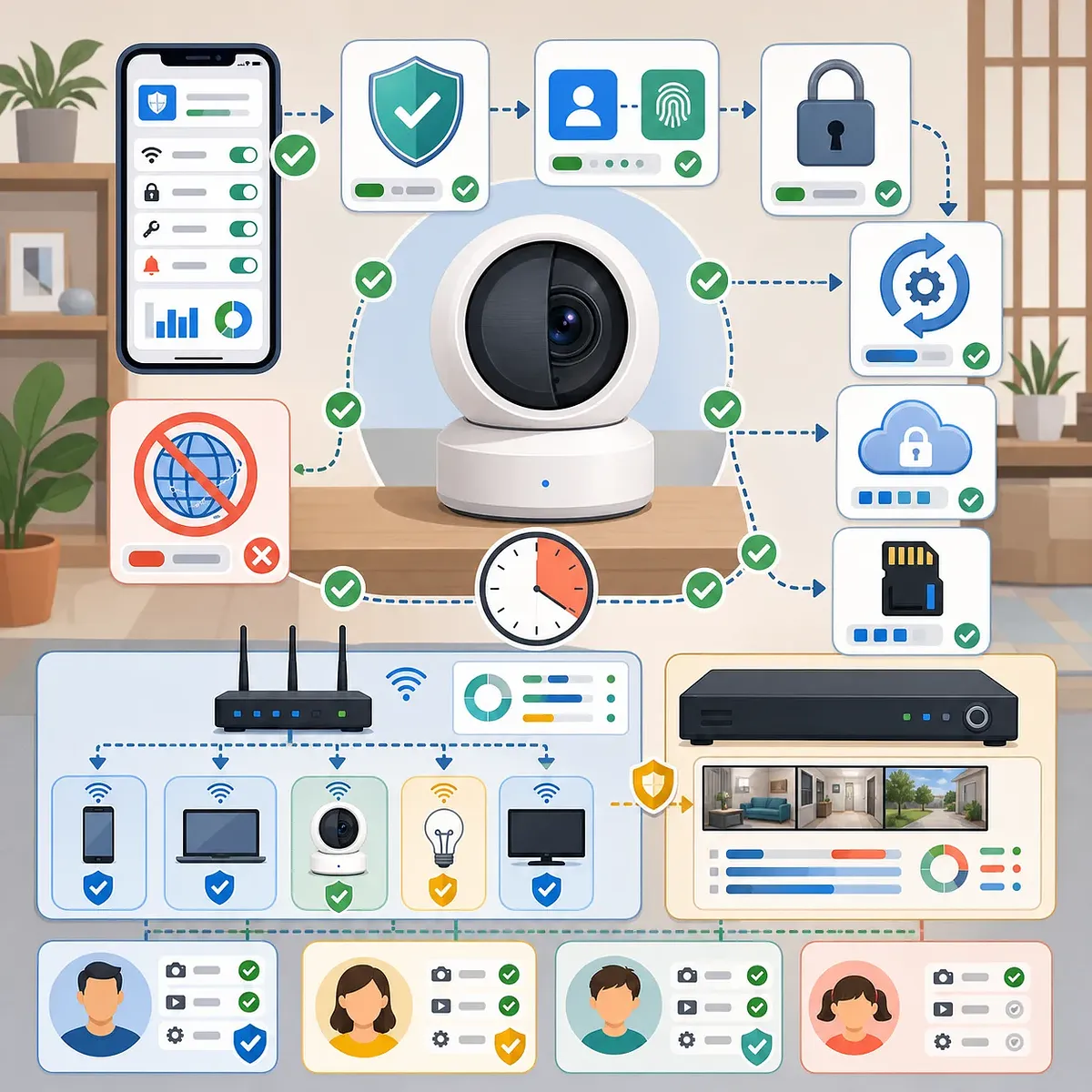
Find and enable the Two-Factor Authentication, 2FA, MFA, or Login Verification option. If an authenticator app is supported, compare it with the option provided alongside text messages, and store recovery codes in a secure location separate from the home camera.
Also check the following:
- Whether the recovery email address and phone number are current
- Whether any unknown phones or browsers are logged in
- Whether notifications for logins from new devices can be enabled
- Whether all existing sessions can be logged out at once
If the product does not support two-factor authentication, it is especially important to use a strong, unique password. If external access is not essential, disable remote viewing and consider replacing the product in the long term with one that supports two-factor authentication and security updates.
3. Update the Firmware and App
Check whether the device is up to date under the app’s Device Information, Firmware, or Software Update menu, and enable automatic updates. Update the home camera app on your phone through an official app distribution channel as well.
If the manufacturer publishes an end-of-support date, it is advisable to record it. Even if the app still works, a camera that no longer receives security patches may not be protected against new vulnerabilities. Do not manually install firmware files from unclear sources, as they may contain malware or cause device failure.
4. Check the Storage Method, Encryption, and Server Location
Cloud, microSD, and NVR storage have different security and recovery characteristics. No option is automatically the safest; account protection and encryption must also be considered.
| Storage Method | Main Advantages | Main Risks | Items to Check |
|---|---|---|---|
| Cloud | Footage may remain available even if the camera is damaged or stolen | Affected by account theft, service outages, and the provider’s retention policies | Encryption in transit and at rest, two-factor authentication, retention period, deletion method, server country |
| microSD | Can record during internet outages and reduce external transmission | May be stolen with the camera, or the card may be removed and the footage read | Card encryption, loop recording, failure notifications, backup method |
| NVR or NAS | Makes it easier to manage footage from multiple cameras directly and define retention policies | If the NVR account or internal network is compromised, footage from multiple cameras may be exposed together | Administrator password, updates, access permissions, separate network, backups |
Three types of video encryption must be distinguished:
- Encryption in transit: Check whether footage is encrypted between the camera, app, and server.
- Encryption of stored data: Check whether files stored in the cloud, on a card, or on an NVR are encrypted.
- End-to-end encryption: Check whether the system prevents intermediaries, including the service provider, from decrypting footage, and who manages the encryption keys.
A lock icon in the app does not guarantee end-to-end encryption. Check the manufacturer’s privacy policy, security guide, or support documentation to determine whether encryption in transit, encryption at rest, and end-to-end encryption are each supported.
Whether the server is located domestically or overseas may affect applicable laws, data transfers, support requests, and deletion procedures, but security cannot be judged by the server’s country alone. Along with the server location, check encryption, access controls, retention periods, and how footage is handled after account deletion.
5. Remote Viewing and Physical Recording Prevention
If you do not need to view footage from outside your home, disable the app’s Remote Access, External Viewing, P2P Connection, or Cloud Access features. If you have configured port forwarding directly on the router or UPnP is enabled unnecessarily, consider removing or disabling it. However, disabling UPnP may also affect how game consoles or other smart devices connect.
When the camera is not in use, you can prevent recording itself in the following ways:
- Close the product’s built-in physical lens shutter.
- Use a power cutoff switch or smart plug.
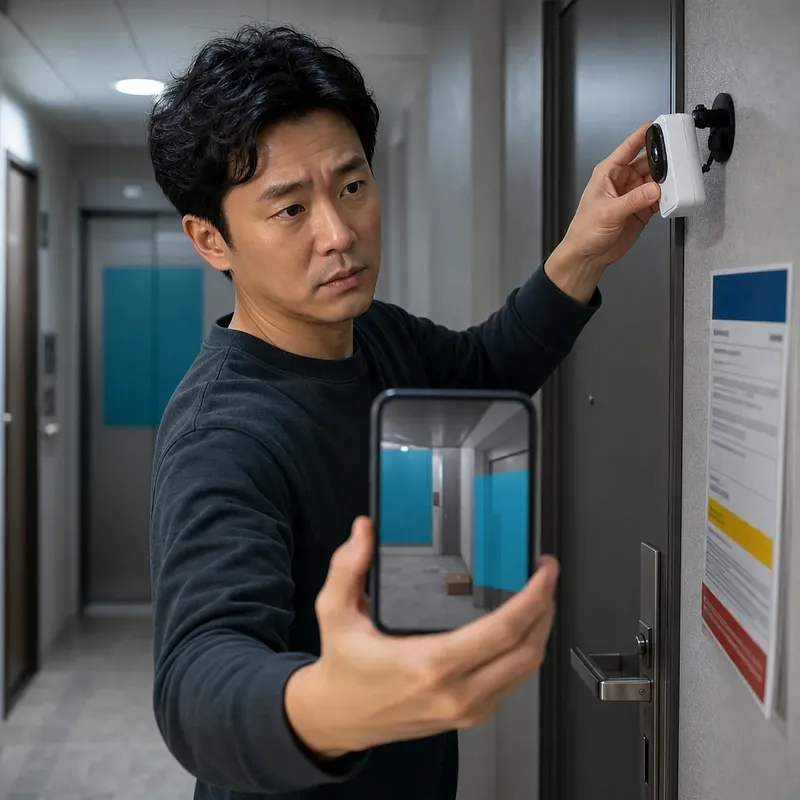
- Do not install it in places where exposure could cause significant harm, such as bedrooms, bathrooms, or changing areas.
- Rather than covering the status light yourself, check the manual to determine whether it is linked to the camera’s actual recording status.
A lens cover prevents video recording, but it does not block microphone input or the device’s network communications. If audio must also be blocked, check for a microphone disable or power cutoff feature.
Check the Router and Home Network as Well
Changing only the home camera settings can reduce risk, but weak router security may allow access through other routes.
- Change the router administrator’s default password.
- Update the router firmware and enable automatic updates if possible.
- Use WPA2 or WPA3 encryption and do not use the outdated WEP standard.
- If supported by the router, isolate the home camera on a guest or dedicated IoT network.
- Disable remote administration that allows access to the router’s administration interface over the internet if it is not needed.
- Check for unknown port-forwarding rules and connected devices.
A dedicated IoT network helps reduce pathways from a compromised home camera to personal computers or storage devices. However, some home cameras must be on the same local network as your phone for initial setup or local playback, so check the manufacturer’s instructions first.
Configure Family Sharing and Audio Features
If multiple people share one administrator account and password, it is difficult to track who accessed the camera, and one person losing a device can expose the entire account. If possible, invite each user with a separate account and grant only the permissions they need.
- Do not grant administrator privileges to someone who only needs live viewing.
- Remove permissions for temporary users, former residents, and former caregivers.
- Disable two-way audio, sound detection, and facial recognition if they are not needed.
- Check whether expiration times or passwords can be set for video-sharing links.
- Manage the camera’s location and scope of use so that children and visitors are aware they are being recorded.
What to Do When You Suspect Hacking
One point frequently omitted from existing guidance is how to respond after noticing signs of a breach. The following incidents do not necessarily confirm hacking, but they are grounds for an immediate check:
- The camera moves or its status light changes when it is not being used
- You receive unknown login or password-change notifications
- Unfamiliar shared users or connected devices appear
- Stored footage is deleted or settings change repeatedly
- Unknown voices are heard through the speaker
If you are suspicious, respond in the following order:
- Disconnect the camera from the internet or unplug its power.
- Capture screenshots of notifications, login records, unfamiliar users, and settings screens.
- Change the passwords for your email account and home camera account using a trusted phone or computer.
- Sign out all login sessions, remove all shared users, and reconfigure two-factor authentication.
- Check security notices and the latest firmware through the manufacturer’s official support channel.
- After preserving necessary records, perform a factory reset and configure the device again with new account information.
- If you suspect a privacy violation or crime, consult your local police or cybercrime reporting agency.
If evidence may be needed, preserve login records and notifications before performing a factory reset. A factory reset may erase the device’s settings, but it cannot recover footage already copied to the cloud or a compromised email account.
Security Requirements to Check When Buying a New Home Camera
In addition to price and image quality, include the product’s support structure among your purchasing criteria.
- Does it require the creation of a unique password during initial setup?
- Does it support two-factor authentication and login notifications?
- Does it provide automatic security updates and an end-of-support date?
- Can it be used with local storage only, without the cloud?
- Does it clearly explain its encryption methods for data in transit and at rest?
- Does it disclose the country where video servers are located, the retention period, and the account deletion procedure?
- Does it have a physical lens shutter and a microphone-off feature?
- Does it provide a channel for reporting security vulnerabilities and an official support page?
When selling or disposing of a used device, unlink it in the app, delete cloud footage, and then perform a factory reset. The microSD card must also be removed and securely erased or kept in your possession.